Function PivotTable
PivotTable(
props):Promise<ReactNode> |ReactNode
Pivot table with pagination.
Parameters
| Parameter | Type | Description |
|---|---|---|
props | PivotTableProps | Pivot Table properties |
Returns
Promise< ReactNode > | ReactNode
Pivot Table component
Example
import { PivotTable } from '@sisense/sdk-ui';
import * as DM from './sample-ecommerce';
import { measureFactory } from '@sisense/sdk-data';

const CodeExample = () => {
  return (
    <PivotTable
      dataSet={DM.DataSource}
      dataOptions={{
        rows: [
          {
            column: DM.Commerce.Date.Years,
            dateFormat: 'yyyy',
            name: 'Year',
          },
          DM.Commerce.Condition,
        ],
        columns: [DM.Commerce.AgeRange],
        values: [measureFactory.sum(DM.Commerce.Revenue, 'Total Revenue')],
      }}
      styleOptions={{
        rowsPerPage: 10,
        height: 425,
        width: 800,
      }}
    />
  );
};

export default CodeExample;
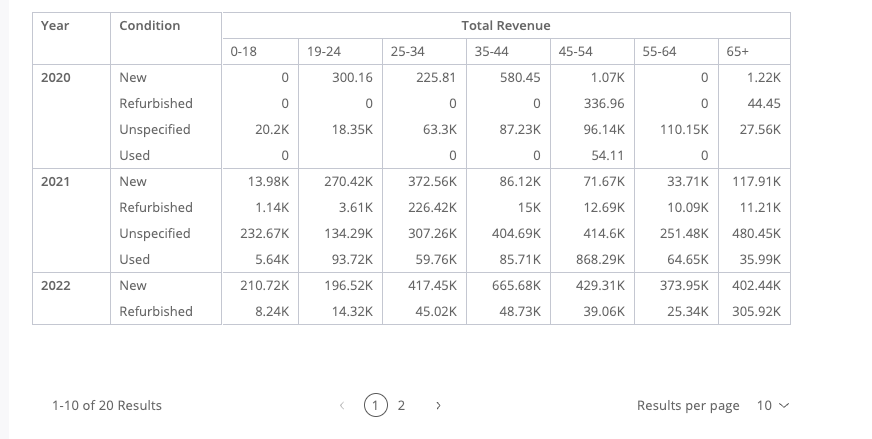
Additional examples:
Highlighting relative magnitude within a column with data bars:
import { PivotTable } from '@sisense/sdk-ui';
import * as DM from './sample-ecommerce';
import { measureFactory } from '@sisense/sdk-data';

const CodeExample = () => {
  return (
    <PivotTable
      dataSet={DM.DataSource}
      dataOptions={{
        rows: [DM.Commerce.Condition, DM.Commerce.AgeRange],
        columns: [
          {
            column: DM.Commerce.Date.Years,
            dateFormat: 'yyyy',
            name: 'Year',
          },
        ],
        values: [
          {
            column: measureFactory.sum(DM.Commerce.Revenue, 'Total Revenue'),
            dataBars: true,
          },
        ],
      }}
      styleOptions={{
        rowsPerPage: 10,
        height: 425,
        width: 850,
      }}
    />
  );
};

export default CodeExample;
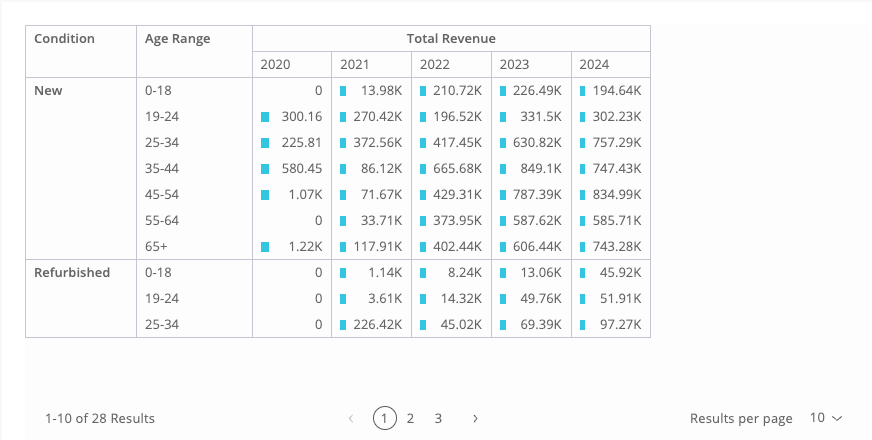
Sorting rows: Condition and Age Range rows sorted directly by their own values (equivalent to a user clicking a row heading and choosing Sort Descending):
import { PivotTable } from '@sisense/sdk-ui';
import * as DM from './sample-ecommerce';
import { measureFactory } from '@sisense/sdk-data';

const CodeExample = () => {
  return (
    <PivotTable
      dataSet={DM.DataSource}
      dataOptions={{
        rows: [
          {
            column: DM.Commerce.Condition,
            sortType: 'sortDesc',
          },
          {
            column: DM.Commerce.AgeRange,
            sortType: 'sortDesc',
          },
        ],
        columns: [{ column: DM.Commerce.Date.Years }],
        values: [
          { column: measureFactory.sum(DM.Commerce.Revenue, 'Revenue') },
          { column: measureFactory.sum(DM.Commerce.Quantity, 'Units') },
        ],
      }}
      styleOptions={{
        rowsPerPage: 12,
        height: 425,
        width: 1200,
      }}
    />
  );
};

export default CodeExample;
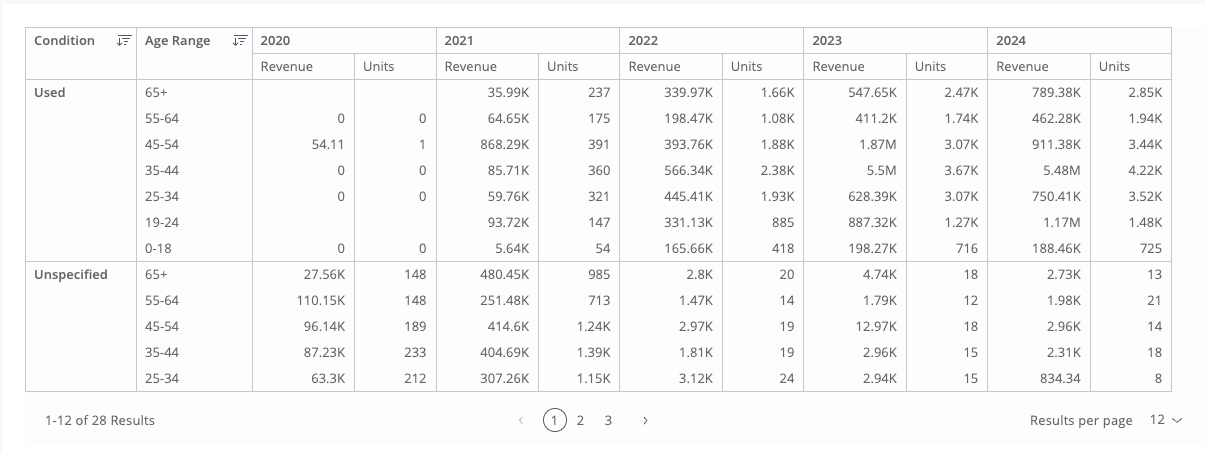
Sorting rows by a value column: Age Range sorted by its Revenue values (equivalent to a user clicking the Revenue value heading and sorting Age Range Descending):
import { PivotTable } from '@sisense/sdk-ui';
import * as DM from './sample-ecommerce';
import { measureFactory } from '@sisense/sdk-data';

const CodeExample = () => {
  return (
    <PivotTable
      dataSet={DM.DataSource}
      dataOptions={{
        rows: [
          DM.Commerce.Condition,
          {
            column: DM.Commerce.AgeRange,
            sortType: {
              direction: 'sortDesc',
              by: {
                valuesIndex: 0,
              },
            },
          },
        ],
        values: [
          measureFactory.sum(DM.Commerce.Revenue, 'Revenue'),
          measureFactory.sum(DM.Commerce.Quantity, 'Units'),
        ],
      }}
      styleOptions={{
        rowsPerPage: 12,
        height: 425,
        width: 800,
      }}
    />
  );
};

export default CodeExample;
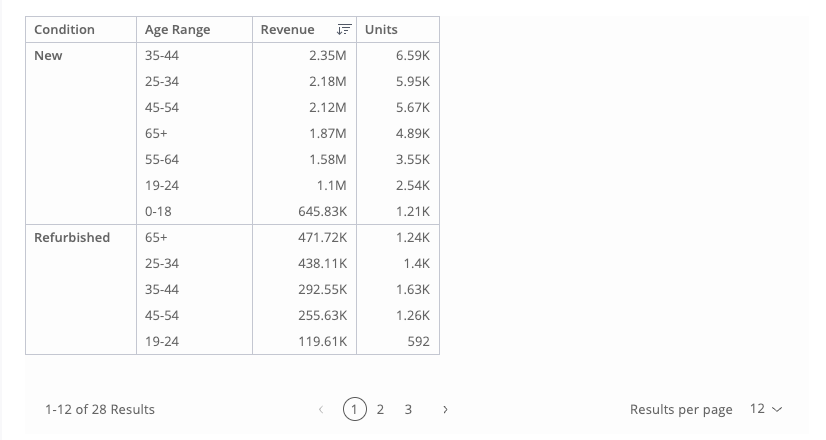
Grand totals across rows and columns:
import { PivotTable } from '@sisense/sdk-ui';
import * as DM from './sample-ecommerce';
import { measureFactory } from '@sisense/sdk-data';

const CodeExample = () => {
  return (
    <PivotTable
      dataSet={DM.DataSource}
      dataOptions={{
        rows: [
          {
            column: DM.Commerce.Date.Years,
            dateFormat: 'yyyy',
            name: 'Year',
          },
          DM.Commerce.Condition,
        ],
        columns: [DM.Commerce.AgeRange],
        values: [measureFactory.sum(DM.Commerce.Revenue, 'Total Revenue')],
        grandTotals: {
          rows: true,
          columns: true,
        },
      }}
      styleOptions={{
        rowsPerPage: 15,
        height: 550,
        width: 900,
        totalsColor: true,
        headersColor: true,
      }}
    />
  );
};

export default CodeExample;
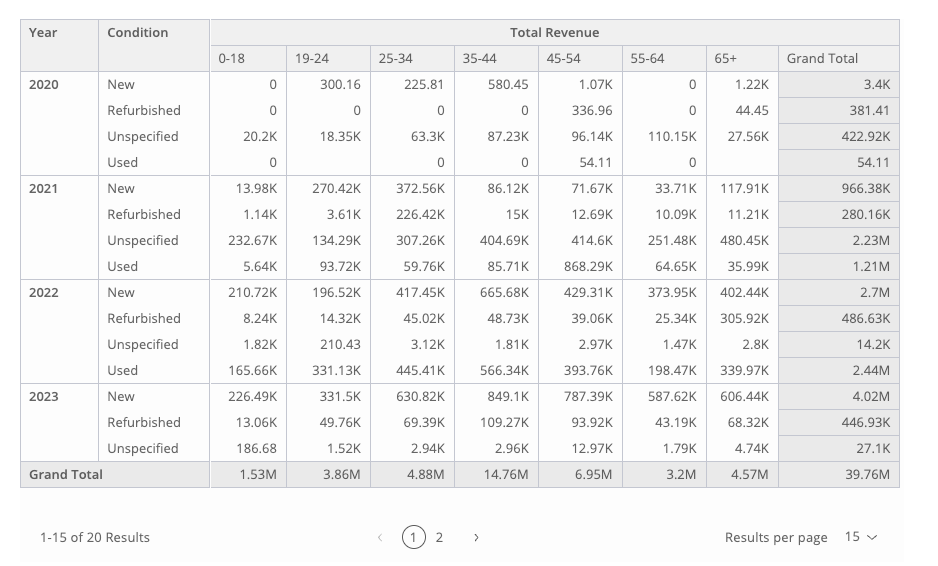
Grand totals plus a subtotal row per Year, via PivotTableDataOptions.rows' includeSubTotals:
import { PivotTable } from '@sisense/sdk-ui';
import * as DM from './sample-ecommerce';
import { measureFactory } from '@sisense/sdk-data';

const CodeExample = () => {
  return (
    <PivotTable
      dataSet={DM.DataSource}
      dataOptions={{
        rows: [
          {
            column: DM.Commerce.Date.Years,
            dateFormat: 'yyyy',
            name: 'Year',
            includeSubTotals: true,
          },
          DM.Commerce.Condition,
        ],
        columns: [DM.Commerce.AgeRange],
        values: [measureFactory.sum(DM.Commerce.Revenue, 'Total Revenue')],
        grandTotals: {
          rows: true,
          columns: true,
        },
      }}
      styleOptions={{
        rowsPerPage: 15,
        height: 550,
        width: 900,
        totalsColor: true,
        headersColor: true,
      }}
    />
  );
};

export default CodeExample;
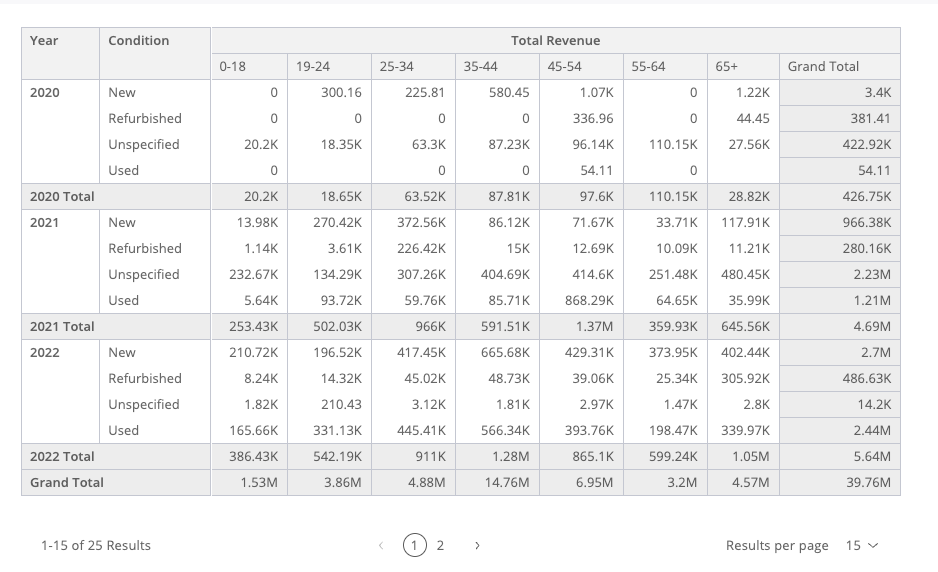
Remarks
Configuration options can also be applied within the scope of a <SisenseContextProvider> to control the default behavior of PivotTable, by changing available settings within appConfig.chartConfig.tabular.*
Follow the link to AppConfig for more details on the available settings.