3 | Compose Dashboard In Code
It’s time to detach ourselves from Fusion dashboards.
In the following examples, you'll learn how to programmatically create a dashboard based on the data fetched from Sisense using the generic Dashboard component — without relying on any pre-existing Fusion dashboards.
Note
The examples below assume that the app is already set up to connect to the Sample ECommerce data model in a Sisense instance using SisenseContextProvider – see Quickstart guides.
To keep the code concise, the examples are provided in React, but the same configurations can be adapted for Angular and Vue.
Create an Empty Dashboard
In this example, we'll start dashboardProps almost empty with just title and an empty array of WidgetProps.
React
import { Dashboard, DashboardProps, WidgetProps } from '@sisense/sdk-ui';
import { useMemo } from 'react';

const CodeExample = () => {
  // DashboardProps is a set of properties for the Dashboard component
  const dashboardProps: DashboardProps = useMemo(() => {
    const widgets: WidgetProps[] = [];

    return { title: 'Fabulous ECommerce Dashboard', widgets };
  }, []);

  return <Dashboard {...dashboardProps} />;
};

export default CodeExample;

Add a Chart Widget
Let's add a chart widget to the list of widgets. It is a simple indicator displaying Total Revenue.
React
import { Dashboard, DashboardProps, WidgetProps } from '@sisense/sdk-ui';
import * as DM from './sample-ecommerce';
import { useMemo } from 'react';
import { measureFactory } from '@sisense/sdk-data';

const CodeExample = () => {
  // DashboardProps is a set of properties for the Dashboard component
  const dashboardProps: DashboardProps = useMemo(() => {
    const widgets: WidgetProps[] = [
      {
        id: 'widget-1',
        widgetType: 'chart',
        chartType: 'indicator',
        title: 'Total Revenue',
        dataOptions: {
          value: [
            {
              column: measureFactory.sum(DM.Commerce.Revenue, 'Total Revenue').format('0,0$'),
            },
          ],
        },
      },
    ];

    return { title: 'Fabulous ECommerce Dashboard', widgets };
  }, []);

  return <Dashboard {...dashboardProps} />;
};

export default CodeExample;

Let's take a closer look at WidgetProps:
idis needed for layout and widget options.widgetTypecan be one of the four currently supported types:chart,pivot,text, andplugin.filtersis not provided as the dashboard does not have any filters yet.layoutOptionshelps to customize howwidgetsare laid out. If it is not provided, dashboard will use a simple vertical column layout by default.
This isn't a very interesting dashboard. Let’s improve this in the next example.
Add Dashboard Filters, Other Widgets, and Set Up Layout
Below is the code for the same Sample Ecommerce dashboard created programatically.
React
import {
  Dashboard,
  DashboardProps,
  IndicatorStyleOptions,
  LineStyleOptions,
  NumberFormatConfig,
  ScatterStyleOptions,
  StackableStyleOptions,
  WidgetProps,
  WidgetsPanelColumnLayout,
} from '@sisense/sdk-ui';
import * as DM from './sample-ecommerce';
import { useMemo } from 'react';
import { Filter, filterFactory, measureFactory } from '@sisense/sdk-data';

const seriesToColorMap = {
  Female: '#00cee6',
  Male: '#9b9bd7',
  Unspecified: '#6eda55',
};

export const getIndicatorStyleOptions = (
  title: string,
  secondaryTitle = '',
): IndicatorStyleOptions => {
  return {
    indicatorComponents: {
      title: {
        shouldBeShown: true,
        text: title,
      },
      secondaryTitle: {
        text: secondaryTitle,
      },
      ticks: {
        shouldBeShown: true,
      },
      labels: {
        shouldBeShown: true,
      },
    },
    subtype: 'indicator/gauge',
    skin: 1,
  };
};

const scatterStyleOptions: ScatterStyleOptions = {
  xAxis: {
    logarithmic: true,
  },
  yAxis: {
    logarithmic: true,
  },
  height: 454,
};

const barStyleOptions: StackableStyleOptions = {
  subtype: 'bar/stacked',
  height: 454,
};

const numberFormat: NumberFormatConfig = {
  name: 'Numbers',
  decimalScale: 2,
  trillion: true,
  billion: true,
  million: true,
  kilo: true,
  thousandSeparator: true,
  prefix: false,
  symbol: '$',
};

const lineChartStyleOptions: LineStyleOptions = {
  subtype: 'line/spline',
  lineWidth: { width: 'bold' },
  yAxis: {
    title: { enabled: true, text: 'SALES' },
  },
  y2Axis: {
    title: { enabled: true, text: 'QUANTITY' },
  },
  markers: {
    enabled: true,
    fill: 'hollow',
  },
  height: 454,
};

const CodeExample = () => {
  // DashboardProps is a set of properties for the Dashboard component
  const dashboardProps: DashboardProps = useMemo(() => {
    const widgets: WidgetProps[] = [
      {
        id: 'widget-1',
        widgetType: 'chart',
        chartType: 'indicator',
        title: 'Total Revenue',
        dataOptions: {
          value: [
            {
              column: DM.Measures.SumRevenue,
              numberFormatConfig: numberFormat,
            },
          ],
          secondary: [],
          min: [measureFactory.constant(0)],
          max: [measureFactory.constant(125000000)],
        },
        styleOptions: getIndicatorStyleOptions('Total Revenue'),
      },
      {
        id: 'widget-2',
        widgetType: 'chart',
        chartType: 'indicator',
        title: 'Total Units Sold',
        dataOptions: {
          value: [DM.Measures.Quantity],
          secondary: [],
          min: [measureFactory.constant(0)],
          max: [measureFactory.constant(250000)],
        },
        styleOptions: getIndicatorStyleOptions('Total Units Sold'),
      },
      {
        id: 'widget-3',
        widgetType: 'chart',
        chartType: 'indicator',
        title: 'Total Sales',
        dataOptions: {
          value: [measureFactory.countDistinct(DM.Commerce.VisitID)],
          secondary: [],
          min: [measureFactory.constant(0)],
          max: [measureFactory.constant(100000)],
        },
        styleOptions: getIndicatorStyleOptions('Total Sales'),
      },
      {
        id: 'widget-4',
        widgetType: 'chart',
        chartType: 'indicator',
        title: 'Total Brands',
        dataOptions: {
          value: [measureFactory.countDistinct(DM.Brand.BrandID)],
          secondary: [],
          min: [measureFactory.constant(0)],
          max: [measureFactory.constant(2500)],
        },
        styleOptions: getIndicatorStyleOptions('Total Brands'),
      },
      {
        id: 'widget-5',
        widgetType: 'chart',
        chartType: 'line',
        title: 'REVENUE vs.UNITS SOLD',
        dataOptions: {
          category: [
            {
              column: DM.Commerce.Date.Months,
              dateFormat: 'yy-MM',
            },
          ],
          value: [
            DM.Measures.SumRevenue,
            {
              column: DM.Measures.Quantity,
              showOnRightAxis: true,
              chartType: 'column',
            },
          ],
          breakBy: [],
        },
        styleOptions: lineChartStyleOptions,
      },
      {
        id: 'widget-6',
        widgetType: 'chart',
        chartType: 'pie',
        title: 'GENDER BREAKDOWN',
        dataOptions: {
          category: [DM.Commerce.Gender],
          value: [DM.Measures.SumRevenue],
        },
        filters: [filterFactory.members(DM.Commerce.Gender, ['Male', 'Female'])],
        styleOptions: scatterStyleOptions,
      },
      {
        id: 'widget-7',
        widgetType: 'chart',
        chartType: 'pie',
        title: 'AGE RANGE BREAKDOWN',
        dataOptions: {
          category: [DM.Commerce.AgeRange],
          value: [DM.Measures.SumRevenue],
        },
        filters: [filterFactory.members(DM.Commerce.Gender, ['Male', 'Female'])],
        styleOptions: scatterStyleOptions,
      },
      {
        id: 'widget-8',
        widgetType: 'chart',
        chartType: 'scatter',
        title: 'TOP CATEGORIES BY REVENUE, UNITS SOLD AND GENDER',
        dataOptions: {
          x: DM.Measures.SumRevenue,
          y: DM.Measures.Quantity,
          breakByPoint: DM.Category.Category,
          breakByColor: DM.Commerce.Gender,
          size: DM.Measures.SumCost,
          seriesToColorMap,
        },
        filters: [
          filterFactory.members(DM.Commerce.Gender, ['Male', 'Female']),
          filterFactory.topRanking(DM.Category.Category, DM.Measures.SumRevenue, 10),
        ],
        styleOptions: scatterStyleOptions,
      },
      {
        id: 'widget-9',
        widgetType: 'chart',
        chartType: 'bar',
        title: 'TOP 3 CATEGORIES BY REVENUE AND AGE',
        dataOptions: {
          category: [DM.Commerce.AgeRange],
          value: [DM.Measures.SumRevenue],
          breakBy: [DM.Category.Category],
        },
        filters: [filterFactory.topRanking(DM.Category.Category, DM.Measures.SumRevenue, 3)],
        styleOptions: barStyleOptions,
      },
    ];

    const filters: Filter[] = [
      filterFactory.members(DM.Commerce.Date.Years, ['2013-01-01T00:00:00']),
      filterFactory.members(DM.Country.Country, []),
      filterFactory.greaterThan(DM.Commerce.Revenue, 0),
    ];

    const widgetsPanelLayout: WidgetsPanelColumnLayout = {
      columns: [
        {
          widthPercentage: 20,
          rows: [
            { cells: [{ widthPercentage: 100, widgetId: 'widget-1' }] },
            { cells: [{ widthPercentage: 100, widgetId: 'widget-2' }] },
            { cells: [{ widthPercentage: 100, widgetId: 'widget-3' }] },
            { cells: [{ widthPercentage: 100, widgetId: 'widget-4' }] },
          ],
        },
        {
          widthPercentage: 40,
          rows: [
            { cells: [{ widthPercentage: 100, widgetId: 'widget-5' }] },
            {
              cells: [
                { widthPercentage: 50, widgetId: 'widget-6' },
                { widthPercentage: 50, widgetId: 'widget-7' },
              ],
            },
          ],
        },
        {
          widthPercentage: 40,
          rows: [
            { cells: [{ widthPercentage: 100, widgetId: 'widget-8' }] },
            { cells: [{ widthPercentage: 100, widgetId: 'widget-9' }] },
          ],
        },
      ],
    };

    return {
      title: 'Fabulous ECommerce Dashboard',
      widgets,
      filters,
      layoutOptions: { widgetsPanel: widgetsPanelLayout },
    };
  }, []);

  return <Dashboard {...dashboardProps} />;
};

export default CodeExample;
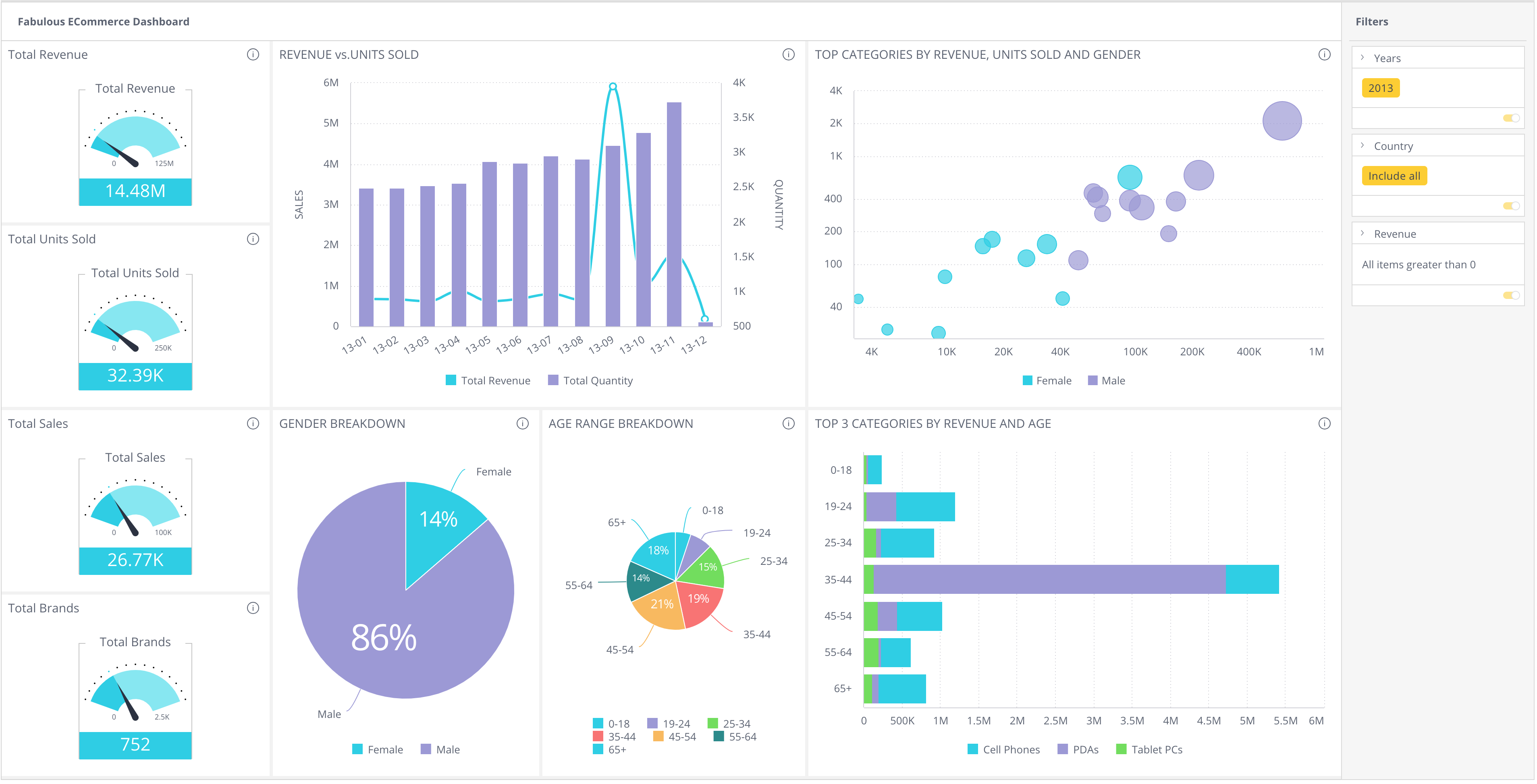
The dashboard is fully interactive. Cross filtering and drilldown work as expected.
At first glance, this code may seem like a significant leap from the previous example. However, upon closer inspection, you'll notice there's no advanced coding or complex algorithms involved. It's simply a standard configuration of dashboard elements: 9 widgets, 3 dashboard filters, and a widget layout.
The Compose SDK handles all the internal wiring and interactions for you.
Learn More
In this section you learned how to compose a dashboard fully in code using the Dashboard component.
To deepen your understanding, check out the API Doc and Compose SDK Playground.