Custom Widgets
Note: This guide is for
React. For other frameworks, see the
Angular and
Vue guides.
This guide explains how to define your own custom widget component and register it in your application code, so that it will be automatically rendered (based on the corresponding widget type) when using the DashboardById component. Custom widgets in Compose SDK can be used to replace Fusion plugins when displaying dashboards.
Note: It is assumed that the application is already configured correctly for use with Compose SDK.
Sample dashboard
The histogramwidget plugin is included with Sisense Fusion, so we'll be using it as our example. We'll start by creating a dashboard in Fusion, containing a single histogramwidget widget with Sample ECommerce as its data source.
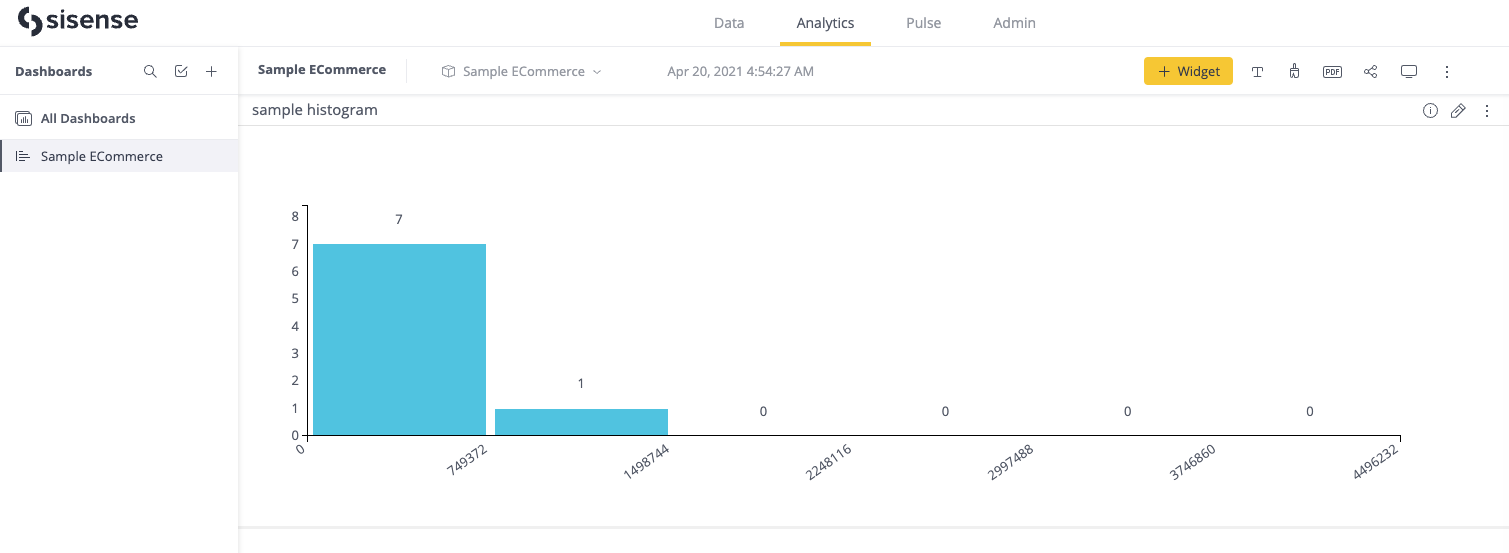
Displaying the dashboard in your application
To display a dashboard using Compose SDK, we need the oid for the relevant dashboard. The simplest way to find this, is to copy the value from the end of the URL when viewing the dashboard in Fusion, e.g. /app/main/dashboards/{dashboardOid}.
The dashboard can be easily displayed using the DashboardById component, passing this value into the dashboardOid prop.
import { DashboardById } from '@sisense/sdk-ui';

function App() {
  return (
    <DashboardById dashboardOid={'66f23d1b202c89002abd64ac'} />
  );
}

export default App;
Since Compose SDK does not support the histogramwidget plugin out of the box, it is expected that Compose SDK will display an error in place of the histogram widget.
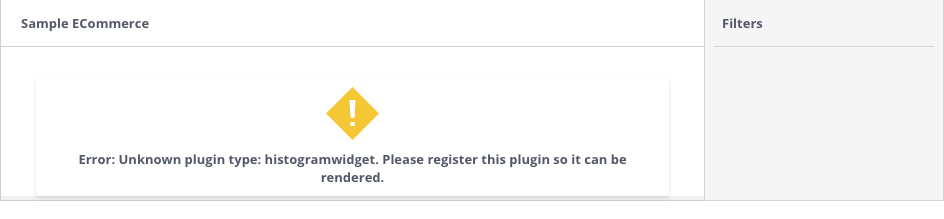
In order to resolve this, we will explore how to define a custom widget component and register it with Compose SDK, so that it knows what to do when it encounters a histogramwidget plugin from Fusion.
Defining a custom widget using Compose SDK
Before registering our custom widget, we first need to define a custom widget component that will replace the Fusion plugin. This component will:
- Receive the props that Compose SDK will pass to our custom widget when rendering the
DashboardByIdcomponent - Run a data query using those props
- Render a visualization with the results
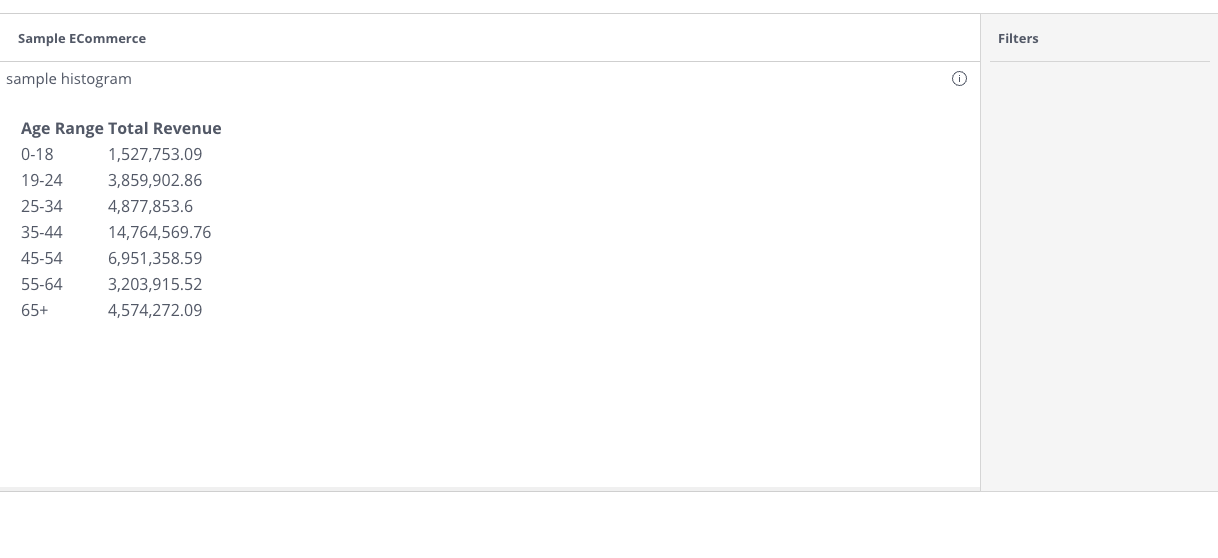
Purely for the simplicity of this guide, we have chosen to define a custom widget component which renders a table of the query results. In reality, you would more likely define a React implementation of a histogram chart, or however else you wish to represent the Fusion plugin in your Compose SDK dashboard.
This guide also aims to demonstrate the flexibility of the registerCustomWidget interface - as long as you provide a functional component that matches the shape of CustomWidgetComponent, Compose SDK will render that component as a replacement for the designated Fusion plugin.
A note on the dataOptions prop that is passed to our component: For those familiar with the Fusion plugin / add-on architecture, dataOptions is the Compose SDK equivalent of panels on the WidgetMetadata object.
Compose SDK translates all widget metadata and filters to Compose SDK data structures (e.g. values inside dataOptions are of type StyledColumn and StyledMeasureColumn, the same types you'd expect for dataOptions into the Chart component).
In the custom widget component, we can use the props directly with the useExecuteCustomWidgetQuery hook which runs a data query and applies some formatting on the results (defined by the StyledColumn information in dataOptions).
import { CustomWidgetComponent, useExecuteCustomWidgetQuery } from '@sisense/sdk-ui';

const ResultsTable: CustomWidgetComponent = (props) => {
  const { data } = useExecuteCustomWidgetQuery(props);

  if (!data) {
    return null;
  }

  return (
    <table style={{ margin: '20px' }}>
      <thead>
        <tr>
          {data.columns.map((column, columnIndex) => (
            <th key={columnIndex}>{column.name}</th>
          ))}
        </tr>
      </thead>
      <tbody>
        {data.rows.map((row, rowIndex) => (
          <tr key={rowIndex}>
            {row.map((cell, cellIndex) => (
              <td key={cellIndex}>{cell.text}</td>
            ))}
          </tr>
        ))}
      </tbody>
    </table>
  );
};

...
If you prefer to work with the raw data without any formatting applied, you can use extractDimensionsAndMeasures with useExecuteQuery instead.
import { useExecuteQuery, extractDimensionsAndMeasures } from '@sisense/sdk-ui';

const { dimensions, measures } = extractDimensionsAndMeasures(props.dataOptions);
const { data } = useExecuteQuery({
  dimensions,
  measures,
  filters: props.filters,
});
Registering the custom widget with Compose SDK
To register the custom widget, we need to call registerCustomWidget, which is returned from the useCustomWidgets hook.
import { DashboardById, useCustomWidgets } from '@sisense/sdk-ui';

...

function App() {
  const { registerCustomWidget } = useCustomWidgets();
  registerCustomWidget('histogramwidget', ResultsTable);

  return <DashboardById dashboardOid={'66f4d4dd384428002ae0a21d'} />;
}

...
If we refresh our application, instead of seeing the error in place of the widget as before, we should now see something like this:
Summary
Here's what we accomplished:
- Displayed an existing Fusion dashboard in our application by rendering a
DashboardByIdcomponent - Created a React component that uses its props to execute a data query and display the results in a table
- Registered that table component as a custom widget to be shown in place of the
histogramwidgetFusion plugin when it is rendered inside of aDashboardByIdcomponent
Obviously, we didn't end up with a new histogram component in React (yet), but hopefully the simplicity of this guide gives you the tools you need to make that, or anything else, happen!
Migration from previous Plugin Interface to Custom Widget Interface
If you have existing code that uses the previous Compose SDK "plugin" interface, here's how to migrate to the new "custom widget" interface.
API Changes
| Previous (Compose SDK Plugin Interface) | New (ComposeSDK Custom Widget Interface) |
|---|---|
usePlugins() | useCustomWidgets() |
registerPlugin() | registerCustomWidget() |
PluginComponent | CustomWidgetComponent |
PluginComponentProps | CustomWidgetComponentProps |
useExecutePluginQuery() | useExecuteCustomWidgetQuery() |
widget.pluginType | widget.customWidgetType |
widget.widgetType -> 'plugin' | widget.widgetType -> 'custom' |
Code Migration Example
Before (Compose SDK Plugin Interface):
import {
  DashboardById,
  PluginComponent,
  useExecutePluginQuery,
  usePlugins
} from '@sisense/sdk-ui';

const MyWidget: PluginComponent = (props) => {
  const { data } = useExecutePluginQuery(props);
  // ... component implementation
};

function App() {
  const { registerPlugin } = usePlugins();
  registerPlugin('my-widget', MyWidget); // 'my-widget' represents a Fusion plugin
  return <DashboardById dashboardOid={'your-dashboard-id'} />;
}
After (Compose SDK Custom Widget Interface):
import {
  DashboardById,
  CustomWidgetComponent,
  useExecuteCustomWidgetQuery,
  useCustomWidgets
} from '@sisense/sdk-ui';

const MyWidget: CustomWidgetComponent = (props) => {
  const { data } = useExecuteCustomWidgetQuery(props);
  // ... component implementation
};

function App() {
  const { registerCustomWidget } = useCustomWidgets();
  registerCustomWidget('my-widget', MyWidget); // 'my-widget' represents a Fusion plugin
  return <DashboardById dashboardOid={'your-dashboard-id'} />;
}
Migration Steps
- Update imports: Change all Compose SDK plugin-related imports to their custom widget equivalents
- Update type annotations: Replace
PluginComponentwithCustomWidgetComponentandPluginComponentPropswithCustomWidgetComponentProps - Update hooks: Replace
usePlugins()withuseCustomWidgets()anduseExecutePluginQuery()withuseExecuteCustomWidgetQuery() - Update registration calls: Replace
registerPlugin()withregisterCustomWidget()
The functionality remains the same - only the Compose SDK naming convention has changed, while adding support for Angular and Vue. Custom widgets in Compose SDK still serve as replacements for Fusion plugins when displaying dashboards.