3 | Custom Breadcrumbs
In this section, you'll learn how to customize the look and feel of our drilldown chart by providing custom breadcrumbs.
Similar to the custom context menu, when building a custom breadcrumbs component, you can use whatever components you choose. In this guide, we use the Material UI Breadcrumbs component as the basis for our custom breadcrumbs.
Props
A breadcrumbs component has the following properties:
currentDimension: The current drilldown dimensionfiltersDisplayValues: List of applied drilldown filters (more on this below)clearDrilldownSelections: Function to run when the clear button is clickedsliceDrilldownSelections: Function to run when a breadcrumb is clicked
So the first step in creating custom breadcrumbs is to create a component with these properties:
export const CustomBreadCrumbs = ({
  currentDimension,
  filtersDisplayValues,
  clearDrilldownSelections,
  sliceDrilldownSelections,
}: DrilldownBreadcrumbsProps) => {
  // Component code goes here
};
Breadcrumbs Component
The breadcrumb component we build in this guide uses Material UI Chip components as the individual breadcrumbs. Again, you can choose to use another component if you want.
Here, whenever breadcrumbs are shown, there will be two chips on either end of the breadcrumbs.
- The first chip contains a button to clear the drilldown and return the chart to its original state
- The last chip displays the current drilldown dimension
For example, here you can see the clear button in the first chip and the current drilldown dimension, Category as the last chip:

To create these chips, you can start to apply some of the properties mentioned above in your component code.
- Use
filterDisplayValuesto define which breadcrumbs to show - Use
clearDrilldownSelectionsto return the chart to its original state when the clear button in the first chip is clicked - Use
currentDimensionto build the last drilldown chip
if (!filtersDisplayValues.length) return null;

return (
  <Breadcrumbs>
    <Chip label="Clear" key="Clear" color="error" onClick={clearDrilldownSelections} icon={<CancelIcon />} />
    {/* Code for additional chips goes here */}
    <Chip label={`${currentDimension.name || ''} (All)`} key="All" color="default" icon={<MoveDown />} />
  </Breadcrumbs>
);
Drilldown Chips
Now you can fill in the remaining chips for the current drilldown hierarchy.
You know how many chips to create based on the number of elements in the filterDisplayValue array. Each element in the array is an array itself of a drilldown level. When a single data point is selected for drilling down, the drilldown level is an array with a single element. If more than one data point is selected for drilling down, the drilldown level is an array containing all the selected points.
For example, consider the chart we discussed in previous sections where the initialDimension is Age range and the drilldownDimensions are Gender, Condition, and Category. If a user initially selects the 25-34 and 35-44 age ranges, drills down on category, and the selects the New category to drill down by age, the filterDisplayValue array will look like this:
[['25-34', '35-44'], ['New']];
Here two similar types of chips are used to display the values in the filtersDisplayValue array. In both types of chips, a value from filtersDisplayValue is used to show which dimensions have been selected for drilling down. If the value contains multiple category selections, you can choose how to display those. Here we choose to separate them with a pipe character (|).
The difference between the two types of chips is whether they are clickable or not. Clickable chips allow users to go back up the drilldown hierarchy. You go back up the hierarchy using the sliceDrilldownSelections callback.
Here you can see the two types of chips. The clickable chips are blue and the others are gray. Clickable chips where it makes sense to move back up the drilldown hierarchy. Non-clickable chips are used in all other cases.
To create these chips, check the location of the current chip in filtersDisplayValues and then build the appropriate type of chip:
{
  filtersDisplayValues.map((displayValue, i) => {
    const isClickable = i < filtersDisplayValues.length - 1;
    return isClickable ? (
      <Chip
        label={displayValue.join(' | ')}
        key={displayValue.join(' | ')}
        onClick={() => sliceDrilldownSelections(i + 1)}
        color="primary"
        icon={<MoveDown />}
      />
    ) : (
      <Chip
        label={displayValue.join(' | ')}
        key={displayValue.join(' | ')}
        color="default"
        icon={<MoveDown />}
      />
    );
  });
}
Apply
Now that you've created a custom breadcrumbs component, you can apply it to a chart. All you need to do is to add a property in the <DrilldownWidget> config. Within the config object, set the breadcrumbsMenuComponent property to the component you created.
In the code below, we also choose to detach the breadcrumbs from the chart component so that we can place it wherever we want.
To do so:
- Set
isBreadcrumbsDetachedtotrue - Add
breadcrumbsComponentto the destructuring of the<DrilldownWidget>return value - Place the
breadcrumbsComponentwhere you want it to display
For example, the following code shows the breadcrumbs component right below the chart:
<DrilldownWidget
  initialDimension={DM.Commerce.AgeRange}
  drilldownDimensions={[
    DM.Commerce.Gender,
    DM.Commerce.Condition,
    DM.Category.Category,
  ]}
  config={{
    isBreadcrumbsDetached: true,
    breadcrumbsComponent: CustomBreadCrumbs,
  }}
>
  {({
      drilldownFilters,
      drilldownDimension,
      onDataPointsSelected,
      onContextMenu,
      breadcrumbsComponent,
    }) => (
      <>
        <Chart
          // Chart code here ...
        />
        {breadcrumbsComponent}
        </>
  )}
    </DrilldownWidget>
  );
}
Note that you can also detach the default breadcrumbs component and place it wherever you want using the same process.
Results
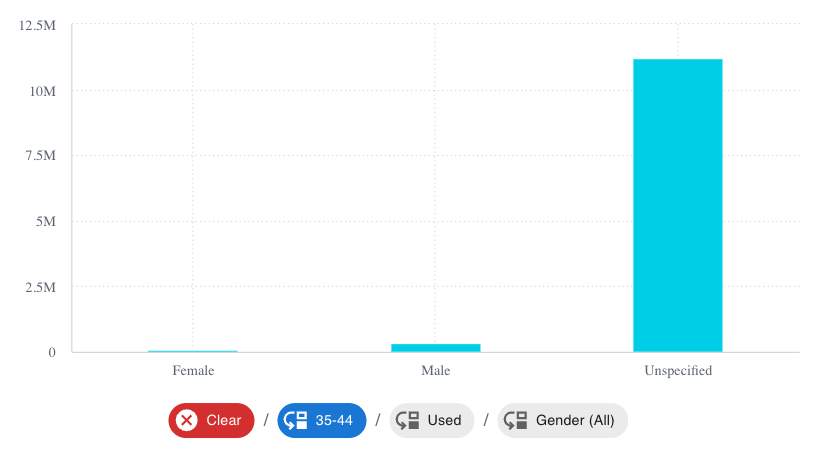
At this point, your breadcrumbs component is ready for action. When you drill down on your chart, you should see a breadcrumbs component that looks like this:
Next Up
In this section you learned how to create a breadcrumbs component. In the next section, you'll see how to create a drilldown experience on a third party chart.
Go to the next lesson.
Full Code
For your convenience, here is the full code for our custom breadcrumbs component:
import { Breadcrumbs, Chip } from '@mui/material';
import { DrilldownBreadcrumbsProps } from '@sisense/sdk-ui';
import CancelIcon from '@mui/icons-material/Cancel';
import MoveDown from '@mui/icons-material/MoveDown';
import { CollectionsBookmark } from '@mui/icons-material';

export const CustomBreadCrumbs = ({
  currentDimension,
  filtersDisplayValues,
  clearDrilldownSelections,
  sliceDrilldownSelections,
}: DrilldownBreadcrumbsProps) => {
  if (!filtersDisplayValues.length) return null;

  return (
    <Breadcrumbs>
      <Chip
        label="Clear"
        key="Clear"
        color="error"
        onClick={clearDrilldownSelections}
        icon={<CancelIcon />}
      />
      {filtersDisplayValues.map((displayValue, i) => {
        const isClickable = i < filtersDisplayValues.length - 1;
        return isClickable ? (
            <Chip
                label={displayValue.join(' | ')}
                key={displayValue.join(' | ')}
                onClick={() => sliceDrilldownSelections(i + 1)}
                color="primary"
                icon={<MoveDown />}
            />
        ) : (
            <Chip
                label={displayValue.join(' | ')}
                key={displayValue.join(' | ')}
                color="default"
                icon={<MoveDown />}
            />
        );
      })}
      <Chip
        label={`${currentDimension.name || ''} (All)`}
        key="All"
        color="default"
        icon={<MoveDown />}
      />
    </Breadcrumbs>
  );
};