Number & Date Formatting
This guide demonstrates how to customize the formatting of numbers and dates in your Compose SDK charts.
Number Formatting
You can format numbers in your chart using the numberFormatConfig property of StyledColumn or StyledMeasureColumn objects.
There are 3 main ways to format numbers. Specify the type of formatting using the name property with one of the following values:
'Numbers': Format as regular numbers that are not currency or percentages'Currency': Format as currency'Percent': Format as a percentage
For each of these format types, you can customize the formatting using the following properties:
thousandsSeparator(boolean): Whether to show a thousands separator. Defaults totrue.decimalScale(number): Number of decimal places to show.
Depending on which type of formatting you use, you can also customize the formatting using the properties described below.
Numbers
Use the following properties to customize the formatting of regular numbers:
trillion(boolean): Whether to abbreviate numbers greater than or equal one trillion. Defaults totrue.billion(boolean): Whether to abbreviate numbers greater than or equal one billion. Defaults totrue.million(boolean): Whether to abbreviate numbers greater than or equal one million. Defaults totrue.kilo(boolean): Whether to abbreviate numbers greater than or equal one thousand. Defaults totrue.
Numbers Example
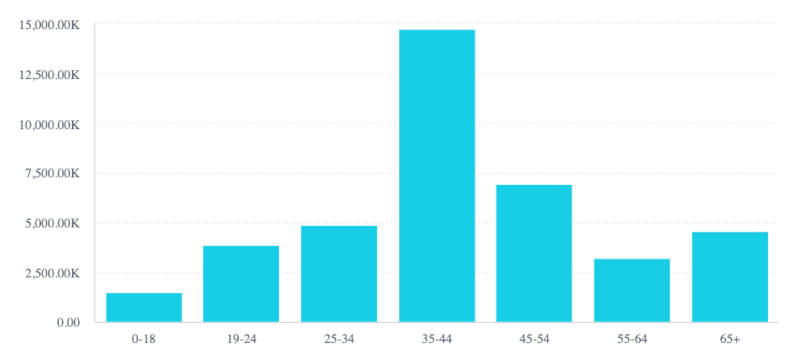
<Chart
  chartType={'column'}
  dataSet={DM.DataSource}
  dataOptions={{
    category: [DM.Commerce.AgeRange],
    value: [
      {
        column: measureFactory.sum(DM.Commerce.Revenue),
        numberFormatConfig: {
          name: 'Numbers',
          million: false,
          decimalScale: 2,
        },
      },
    ],
  }}
/>
Currency
Use the following properties to customize the formatting of numbers representing currency:
prefix(boolean): Whether to show thesymbolbefore the number (true) or after the number (false). Defaults totrue.symbol(string): Symbol to show before or after the number, depending on theprefixvalue. Defaults to'$'.trillion(boolean): Whether to abbreviate numbers greater than or equal one trillion. Defaults totrue.billion(boolean): Whether to abbreviate numbers greater than or equal one billion. Defaults totrue.million(boolean): Whether to abbreviate numbers greater than or equal one million. Defaults totrue.kilo(boolean): Whether to abbreviate numbers greater than or equal one thousand. Defaults totrue.
Currency Example
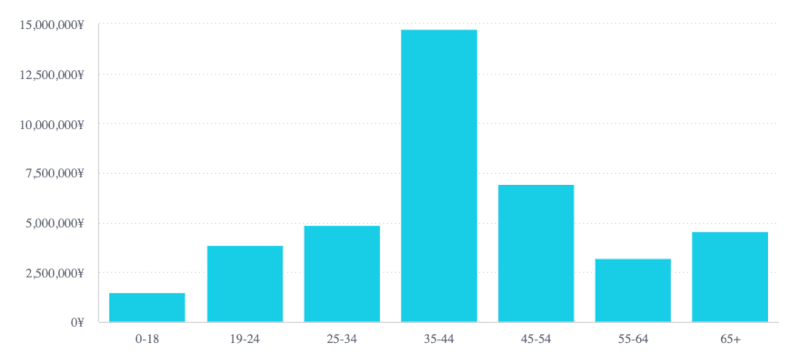
<Chart
  chartType={'column'}
  dataSet={DM.DataSource}
  dataOptions={{
    category: [DM.Commerce.AgeRange],
    value: [
      {
        column: measureFactory.sum(DM.Commerce.Revenue),
        numberFormatConfig: {
          name: 'Currency',
          million: false,
          kilo: false,
          prefix: false,
          symbol: '¥',
        },
      },
    ],
  }}
/>
Percent
The percent type doesn't have any additional properties for further customization.
Percent Example
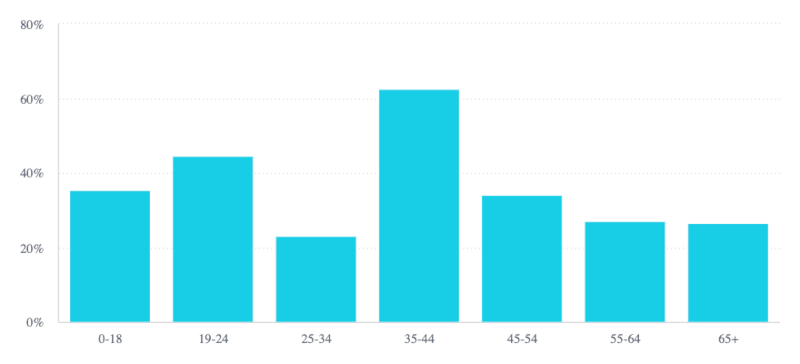
<Chart
  chartType={'column'}
  dataSet={DM.DataSource}
  dataOptions={{
    category: [DM.Commerce.AgeRange],
    value: [
      {
        column: measureFactory.divide(
          measureFactory.sum(DM.Commerce.Revenue),
          measureFactory.sum(DM.Commerce.Cost)
        ),
        numberFormatConfig: {
          name: 'Percent',
        },
      },
    ],
  }}
/>
Date Formatting
You can format dates in your chart categories using the dateFormat property of a StyledColumn or StyledMeasureColumn object. Provide the function with a format string using a ECMAScript Date Time String Format string.
Date Example
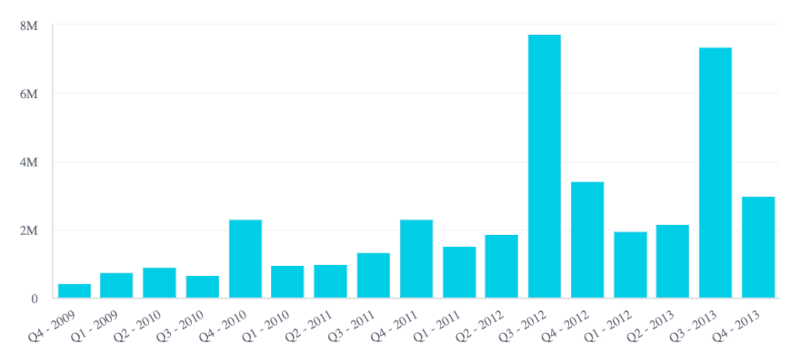
<Chart
  chartType={'column'}
  dataSet={DM.DataSource}
  dataOptions={{
    category: [{column: DM.Commerce.Date.Quarters, dateFormat: 'qqq - yyyy'}],
    value: [
      {
        column: measureFactory.sum(DM.Commerce.Revenue),
      },
    ],
  }}
/>