1 | Simple Drilldown Chart
To create a drilldown experience on a Compose SDK chart, you need to wrap the chart inside a <DrilldownWidget>.
The <DrilldownWidget> component allows you to specify which dimensions can be used to drill down on and adds the following functionality to your chart:
- A context menu for initiating drilldown actions
- Breadcrumbs that allow for navigating the drilldown hierarchy and clearing the current drilldown selection
- Filters for the drilldown operation
Chart
To demonstrate how to add a drilldown experience to a Compose SDK chart, let's start with this simple column chart:
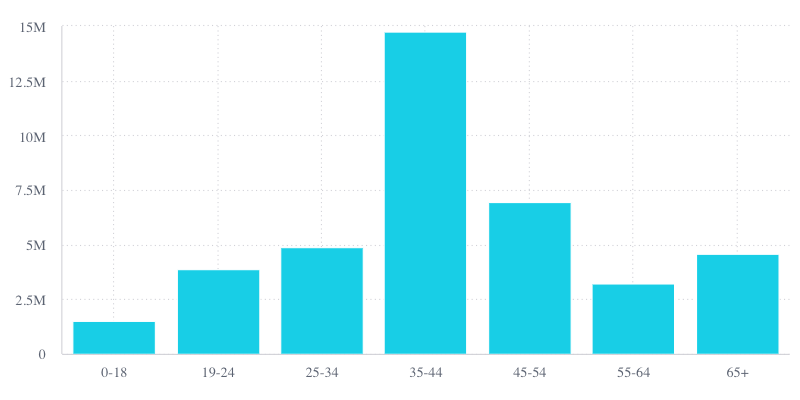
<Chart
  chartType="column"
  dataSet={DM.DataSource}
  dataOptions={{
    category: [DM.Commerce.AgeRange],
    value: [measureFactory.sum(DM.Commerce.Revenue)],
  }}
/>
Drilldown Widget
Once you have a chart that you want to add a drilldown experience to, you need to wrap the chart in a <DrilldownWidget> and provide it with:
initialDimension: The initial dimension that the wrapped chart will showdrilldownDimensions: List of drilldown options that users can choose to drill down on
The widget then provides the chart with:
- Drilldown results in the form of the
drilldownDimensionanddrilldownFiltersto apply to the chart - Functions for handling the selection of data points (
onDataPointsSelected) and the showing of the drilldown context menu (onContextMenu)
For example, wrapping a chart in a <DrilldownWidget> may look something like this:
<DrilldownWidget
  initialDimension={DM.Commerce.AgeRange}
  drilldownDimensions={
    [DM.Commerce.Gender,
    DM.Commerce.Condition,
    DM.Category.Category
  ]}
>
  {({ drilldownDimension, drilldownFilters, onDataPointsSelected, onContextMenu }) => (
      <Chart
      // Chart properties go here
      />
  )}
</DrilldownWidget>
Here you can see that the initialDimension is set to be Age Range, as it was in the chart before adding drilldown functionality. Also, the drilldownDimensions is set to a list of the drilldown options. In this case, users can drill down on the Gender, Condition, and Category dimensions.
Apply to Chart
After wrapping the chart in a <DrilldownWidget>, you need to pass the control to the wrapper so the chart can be modified based on drilldown actions.
That means you need to:
- Switch out the chart's static
categoryfor thedrilldownDimensionfrom the<DrilldownWidget> - Add a
filtersproperty to the chart with the value being thedrilldownFiltersfrom the<DrilldownWidget> - Use the
onDataPointsSelectedandonContextMenufunctions from the<DrilldownWidget>to provide the wrapper with the selected data and context menu position (typically, this is done using chart event callbacks, such asonDataPointsSelectedandonDataPointClick)
That should leave you with code that looks something like this:
<DrilldownWidget
  initialDimension={DM.Commerce.AgeRange}
  drilldownDimensions={[
    DM.Commerce.Gender,
    DM.Commerce.Condition,
    DM.Category.Category
  ]}
>
  {({ drilldownFilters, drilldownDimension, onDataPointsSelected, onContextMenu }) => (
    <Chart
      chartType="column"
      dataSet={DM.DataSource}
      dataOptions={{
        category: [drilldownDimension],
        value: [measureFactory.sum(DM.Commerce.Revenue)],
      }}
      filters={drilldownFilters}
      onDataPointsSelected={(points: DataPoint[], nativeEvent: MouseEvent) => {
        onDataPointsSelected(points, nativeEvent);
        onContextMenu({
          left: nativeEvent.clientX,
          top: nativeEvent.clientY,
        });
      }}
      onDataPointClick={(point: DataPoint, nativeEvent: MouseEvent) => {
        onDataPointsSelected([point], nativeEvent);
        onContextMenu({
          left: nativeEvent.clientX,
          top: nativeEvent.clientY,
        });
      }}
    />
  )}
</DrilldownWidget>
Results
At this point, you have a chart that you can drill down on. You can start the drilldown process by either clicking a a data point or selecting a number of data points.
For example, if you click on the 35-44 age range, you get a context menu with the drilldown category options you set in your code.
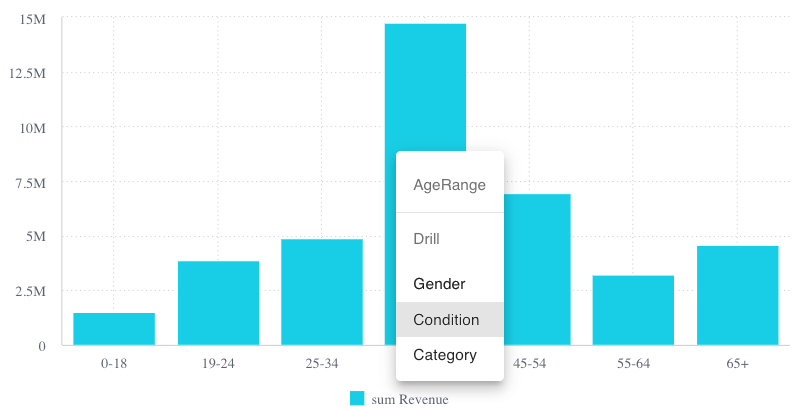
If you then click on a drilldown category, such as Condition, the chart updates accordingly. Note the breadcrumbs above the chart that indicate the current drilldown status.
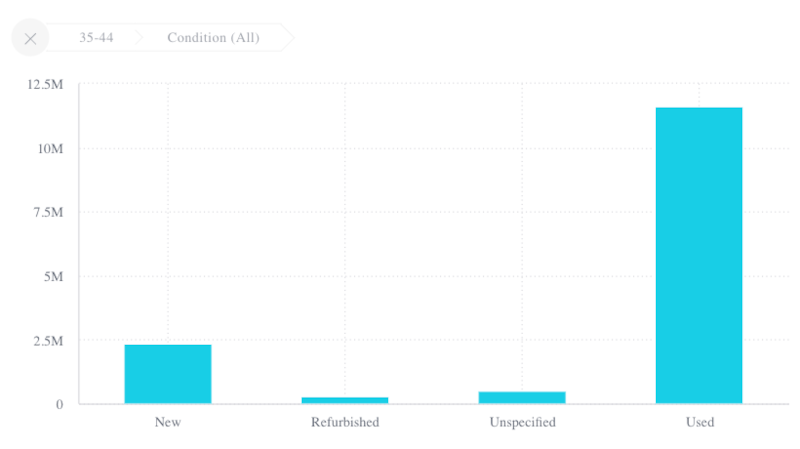
You can then continue to drill down. For example, you can click on the Used column and drill down on Category.
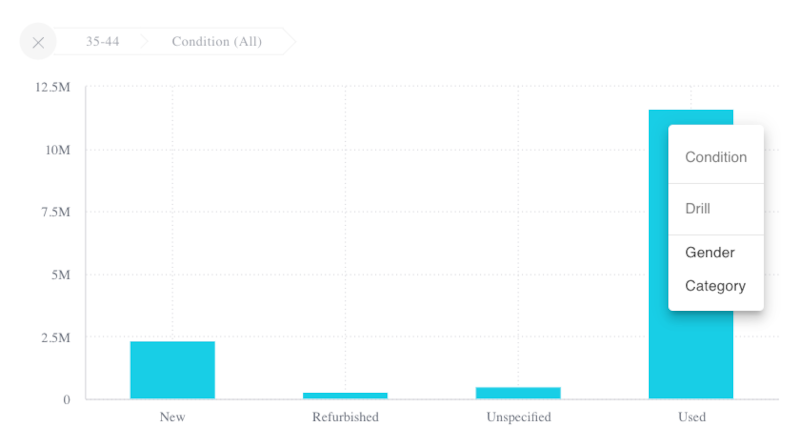
As you drill down, the breadcrumbs keep track of the actions you've performed. You can use the breadcrumbs to go back up some of your drill hierarchy or to clear all the drilling down to return to the original chart.
Next Up
In this section you learned how to create a drilldown experience using Compose SDK components. In the next section, you'll see how to customize the look and feel of a drilldown chart by providing custom context menu.
Go to the next lesson.
Full Code
For your convenience, here is the full code for the simple drilldown chart:
import * as DM from '../sample-ecommerce';
import { Chart, DataPoint, DrilldownWidget } from '@sisense/sdk-ui';
import { measureFactory } from '@sisense/sdk-data';

export const DrilldownChart = () => {
  return (
    <DrilldownWidget
        initialDimension={DM.Commerce.AgeRange}
        drilldownDimensions={[DM.Commerce.Gender, DM.Commerce.Condition, DM.Category.Category]}
    >
      {({ drilldownDimension, drilldownFilters, onDataPointsSelected, onContextMenu }) => (
        <Chart
          chartType="column"
          dataSet={DM.DataSource}
          dataOptions={{
            category: [drilldownDimension],
            value: [measureFactory.sum(DM.Commerce.Revenue)],
          }}
          filters={drilldownFilters}
          onDataPointsSelected={(points: DataPoint[], nativeEvent: MouseEvent) => {
            onDataPointsSelected(points, nativeEvent);
            onContextMenu({
                left: nativeEvent.clientX,
                top: nativeEvent.clientY,
            });
          }}
          onDataPointClick={(point: DataPoint, nativeEvent: MouseEvent) => {
            onDataPointsSelected([point], nativeEvent);
            onContextMenu({
                left: nativeEvent.clientX,
                top: nativeEvent.clientY,
            });
          }}
          styleOptions={{ width: 750 }}
        />
      )}
    </DrilldownWidget>
  );
};