Running SQL Queries in Sisense
You can run SQL queries to extract data from Sisense Datamodels. You can either use the SQL Runner, or use a REST API. Both options are explained below.
Note
This feature is only available to Administrators. You can allow additional user roles to access it by customizing user roles.
SQL Syntax & Limitations
- The syntax is standard SQL
- Sisense supports
SELECTqueries only. You cannot use this interface forINSERT,UPDATE,DELETEand other SQL operations. - The table and column names are the same names that appear in your Datamodel
Example
Given the following Datamodel:
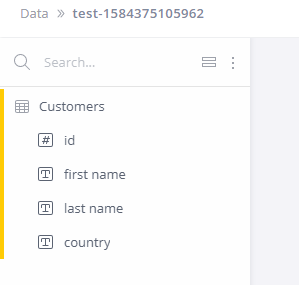
You could run this SQL statement:
SELECT "first name", "last name"
FROM customers
And get the following JSON response:
{
	"headers": [
		"first name",
		"last name"
	],
	"values": [
		[
			"Britney",
			"Britton"
		],
		[
			"Candace",
			"Horton"
		],
		[
			"Annie",
			"Thorisdottir"
		],
		[
			"Amy",
			"Ricana"
		]
	]
}
Using REST API
You can run SQL queries using API calls from your own REST client such as Postman, or a script/application.
This is done via a GET HTTP request to the SQL endpoint's path:
Parameters
| Name | Location | Type | Required | Details |
|---|---|---|---|---|
datasource | path | string | Yes | Your Datamodel's title |
query | query | string | Yes | Your SQL query as a single-line string |
format | query | string | No | Response format. Defaults to json and also accepts csv |
The endpoint returns results in JSON format.
Example
To execute the following SQL query:
SELECT city, count(*)
FROM sales
GROUP BY city
against the laptopsales Datamodel, use the following URi:
https://example.com/api/datasources/laptopsales/sql?query=select sales.city count(*) from sales group by sales.city
Using SQL Runner
Sisense includes a simple UI to execute SQL queries, which can be useful for one-off operations and debugging.
To access the SQL Runner:
- Open Sisense web in a browser and log in.
- In your browser, navigate to
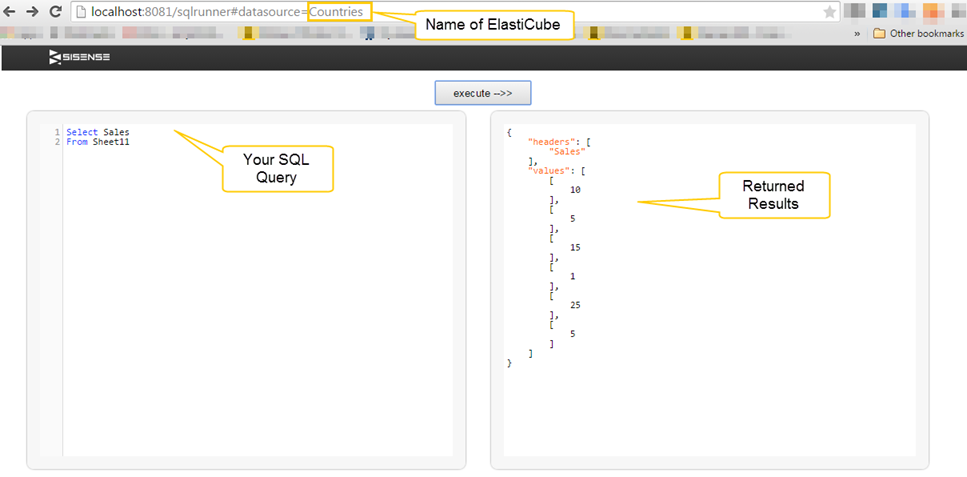
/app/sqleditor?datasource=<your datasource name>. For example:https://example.com/app/sqleditor?datasource=Training - Enter your SQL query in the left panel and click execute. Results will be returned in the right panel
Usage Analytics
Sisense Usage Analytics collects usage information for your Sisense system. This information is collected and stored in a CSV file. You can download this file with the SQL Runner with the following call:
Sisense for Windows:
https://example.com/api/datasources/LocalHost/Usage%20Analytics%20Model/sql?query=select%20*%20from%20usage&format=csv
Sisense for Linux:
https://example.com/api/datasources/Usage%20Analytics%20Model/sql?query=select%20*%20from%20usage&format=csv