4 | Third Party Drilldown Chart
In this section, you'll how to drill down when using a 3rd party charting library. In this guide, we'll switch out our Compose SDK chart with a chart from Plotly.js.
Plotly Wrapper
To get started, you need to build a wrapper around a Plotly chart component so that you can populate it with data retrieved by Compose SDK.
Learn more
Here, we briefly discuss this process. To learn more about using a third party chart with Compose SDK, see the External Charts section of the Charts Guide.
In addition to being able to handle the data we provide it with, the wrapper needs to be able to handle data point selection and display a context menu when needed.
So the first step in creating the wrapper is to create a component with the following properties:
type Props = {
  rawData: QueryResultData,
  onDataPointsSelected: DataPointsEventHandler,
  onContextMenu: (menuPosition: MenuPosition) => void,
};

export const PlotlyBarChart: React.FC<Props> = ({ rawData, onDataPointsSelected, onContextMenu }) => {
  // Chart code goes here
};
Next, you to keep track of the data points selected for drilling down. To do so, create a state variable:
const [selectedCategories, setSelectedCategories] = useState<string[]>([]);
And you also need to store the data for the current state of the drilldown chart as well as the data converted to the format we need for the Plotly chart. To do so create some memoized variables:
const data = useMemo(
  () =>
    rawData.rows.map(([category, value]) => ({
      category: category.data as string,
      value: value.data as string | number,
    })),
  [rawData.rows]
);

const trace = useMemo(() => {
  setSelectedCategories([]);
  return generateTrace(data, rawData.columns[1].name);
}, [data, rawData.columns]);
Note that the generateTrace() function is used to reformat the data for the Plotly chart. That function looks like this:
const generateTrace = (
  data: { [key: string]: Datum }[],
  name: string
): Partial<Plotly.ScatterData> => ({
  type: 'bar',
  x: data.map((d) => d.category),
  y: data.map((d) => d.value),
  name: name,
});
Next, you need to handle clicks to open the drilldown context menu. To do so, use the useEffect() hook to create an event listener that uses the onContextMenu function from the component's props:
useEffect(() => {
  const handleContextMenu = (event: MouseEvent) => {
    event.preventDefault();
    if (!selectedCategories.length) return;
    onContextMenu({ left: event.clientX, top: event.clientY });
  };

  document.addEventListener('contextmenu', handleContextMenu);

  return () => {
    document.removeEventListener('contextmenu', handleContextMenu);
  };
}, [selectedCategories, onDataPointsSelected, onContextMenu]);
After that, you need to handle user selection of data points in the chart. To do so, use the useCallback() hook to set the selectedCategories state variable:
const handleSelection = useCallback(
  (event: PlotSelectionEvent) => {
    if (event.points.length) {
      const internalSelectedCategories = event.points.map((point) => {
        const clickedIndex = point.pointNumber;
        return data[clickedIndex].category;
      });
      setTimeout(
        () => setSelectedCategories(internalSelectedCategories),
        250
      );
      setTimeout(
        () =>
          onDataPointsSelected(
            internalSelectedCategories.map((category) => ({
              value: undefined,
              categoryValue: category,
              categoryDisplayValue: category,
              seriesValue: undefined,
            })),
            event as unknown as MouseEvent
          ),
        250
      );
    }
  },
  [data, onDataPointsSelected]
);
Finally, with all that done, you can apply it to the Plotly <Plot> component:
return (
  <Plot
    data={[trace]}
    layout={{
      datarevision: Date.now(),
    }}
    onSelected={handleSelection}
  />
);
When you put all the above code together, it looks like this:
import { useCallback, useEffect, useMemo, useState } from 'react';
import { QueryResultData } from '@sisense/sdk-data';
import Plot from 'react-plotly.js';
import { Datum, PlotSelectionEvent } from 'plotly.js';
import { DataPointsEventHandler, MenuPosition } from '@sisense/sdk-ui';

type Props = {
  rawData: QueryResultData;
  onDataPointsSelected: DataPointsEventHandler;
  onContextMenu: (menuPosition: MenuPosition) => void;
};

const generateTrace = (
  data: { [key: string]: Datum }[],
  name: string
): Partial<Plotly.ScatterData> => ({
  type: 'bar',
  x: data.map((d) => d.category),
  y: data.map((d) => d.value),
  name: name,
});

export const PlotlyBarChart: React.FC<Props> = ({
  rawData,
  onDataPointsSelected,
  onContextMenu,
}) => {
  const [selectedCategories, setSelectedCategories] = useState<string[]>([]);

  const data = useMemo(
    () =>
      rawData.rows.map(([category, value]) => ({
        category: category.data as string,
        value: value.data as string | number,
      })),
    [rawData.rows]
  );

  const trace = useMemo(() => {
    setSelectedCategories([]);
    return generateTrace(data, rawData.columns[1].name);
  }, [data, rawData.columns]);

  useEffect(() => {
    const handleContextMenu = (event: MouseEvent) => {
      event.preventDefault();
      if (!selectedCategories.length) return;
      onContextMenu({ left: event.clientX, top: event.clientY });
    };

    document.addEventListener('contextmenu', handleContextMenu);

    return () => {
      document.removeEventListener('contextmenu', handleContextMenu);
    };
  }, [selectedCategories, onDataPointsSelected, onContextMenu]);

  const handleSelection = useCallback(
    (event: PlotSelectionEvent) => {
      if (event.points.length) {
        const internalSelectedCategories = event.points.map((point) => {
          const clickedIndex = point.pointNumber;
          return data[clickedIndex].category;
        });
        setTimeout(
          () => setSelectedCategories(internalSelectedCategories),
          250
        );
        setTimeout(
          () =>
            onDataPointsSelected(
              internalSelectedCategories.map((category) => ({
                value: undefined,
                categoryValue: category,
                categoryDisplayValue: category,
                seriesValue: undefined,
              })),
              event as unknown as MouseEvent
            ),
          250
        );
      }
    },
    [data, onDataPointsSelected]
  );

  return (
    <Plot
      style={{ width: '700px', height: '450px' }}
      data={[trace]}
      layout={{
        datarevision: Date.now(),
      }}
      onSelected={handleSelection}
    />
  );
};
Apply Drilldown Widget
Now that you have a Plotly chart properly wrapped, you can further wrap it in a <DrilldownWidget> component to add the drilldown functionality. To do so, you work exactly the same way as you would when wrapping a Compose SDK chart.
Here, since you're already using a custom chart, we'll also use the custom context menu and breadcrumbs from the previous sections. But if you want, you can use the Compose SDK components with your third party chart instead.
export const PlotlyDrilldownChart = () => {
  return (
    <DrilldownWidget
      initialDimension={DM.Commerce.AgeRange}
      drilldownDimensions={[
        DM.Commerce.Gender,
        DM.Commerce.Condition,
        DM.Category.Category
      ]}
      config={{
        isBreadcrumbsDetached: true,
        contextMenuComponent: CustomContextMenu,
        breadcrumbsComponent: CustomBreadCrumbs,
      }}
    >
      {/* Query and chart code go here */}
    </DrilldownWidget>
  );
};
Next, you need to execute a query to get the data for the third party chart. To do so, use the <ExecuteQuery> component. The properties of <ExecuteQuery> look a lot like the properties of the Compose SDK <Chart> from the beginning of this guide since they are both doing the same things under the hood to retrieve data.
Once again, in the <ExecuteQuery> we use the drilldownDimension and drilldownFilters to define which data we want to query for:
<ExecuteQuery
  dataSource={DM.DataSource}
  dimensions={[drilldownDimension]}
  measures={[measureFactory.sum(DM.Commerce.Revenue)]}
  filters={drilldownFilters}
>
  {({ data }) => {
    if (data) {
      return {
        /* Chart code goes here */
      };
    }
  }}
</ExecuteQuery>
All that's left to do now is to pass the retrieved data to your wrapped third party chart:
<PlotlyBarChart
  rawData={data}
  onContextMenu={onContextMenu}
  onDataPointsSelected={onDataPointsSelected}
/>
When you put all the above code together, it looks like this:
import * as DM from '../sample-ecommerce';
import { DrilldownWidget, ExecuteQuery } from '@sisense/sdk-ui';
import { measureFactory } from '@sisense/sdk-data';
import { CustomContextMenu } from './CustomContextMenu';
import { CustomBreadCrumbs } from './CustomBreadCrumbs';
import { PlotlyBarChart } from './PlotlyBarChart';

export const PlotlyDrilldownChart = () => {
  return (
    <DrilldownWidget
      initialDimension={DM.Commerce.AgeRange}
      drilldownDimensions={[
        DM.Commerce.Gender,
        DM.Commerce.Condition,
        DM.Category.Category
      ]}
      config={{
          isBreadcrumbsDetached: true,
          contextMenuComponent: CustomContextMenu,
          breadcrumbsComponent: CustomBreadCrumbs,
      }}
    >
      {({
        drilldownFilters,
        drilldownDimension,
        onDataPointsSelected,
        onContextMenu,
        breadcrumbsComponent
      }) => (
        <ExecuteQuery
          dataSource={DM.DataSource}
          dimensions={[drilldownDimension]}
          measures={[measureFactory.sum(DM.Commerce.Revenue)]}
          filters={drilldownFilters}
        >
          {({ data }) => {
            if (data) {
              return (
                <>
                  <PlotlyBarChart
                    rawData={data}
                    onContextMenu={onContextMenu}
                    onDataPointsSelected={onDataPointsSelected}
                  />
                  {breadcrumbsComponent}
                </>
              );
            }
          }}
        </ExecuteQuery>
      )}
    </DrilldownWidget>
  );
};
Results
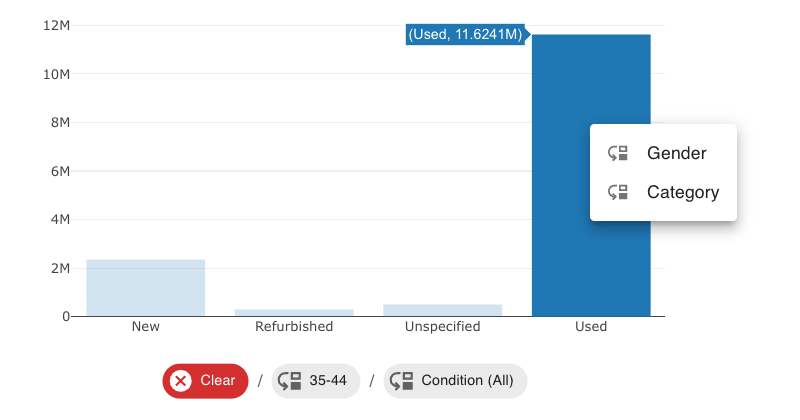
At this point, your custom third party chart is ready for action. When you select data points and drill down, your chart should look something like this: